How to add OpenVPN configuration file in Android phone or tablet
Save the OpenVPN configuration file somewhere where you can find it easily later.
Make sure you have OpenVPN Connect app installed before continue.
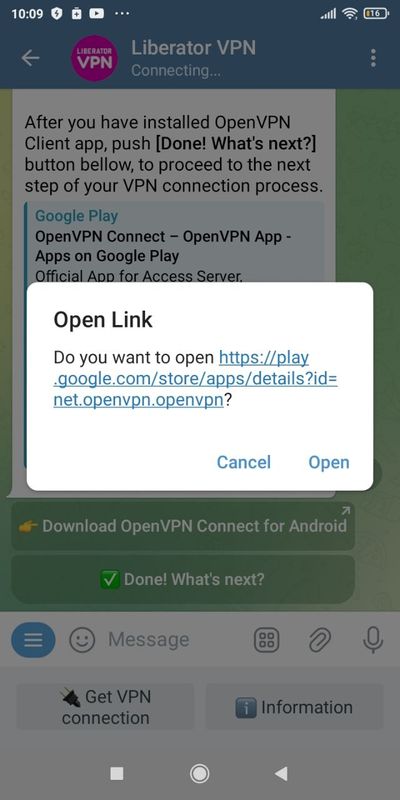
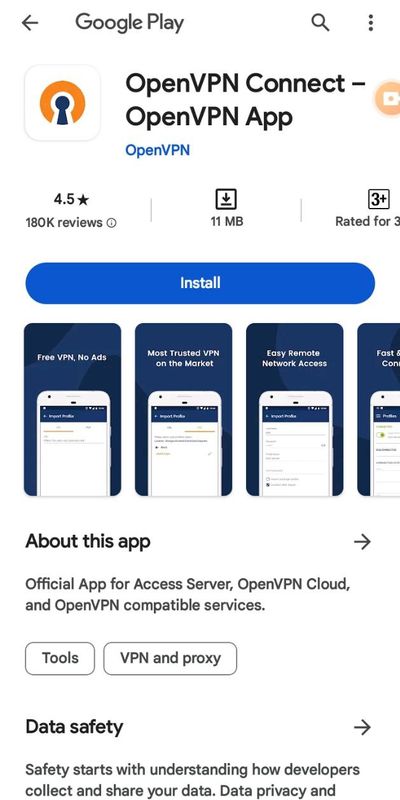
Once the application is installed, open it.
It might come up with "User agreement" just tap AGREE and proceed further
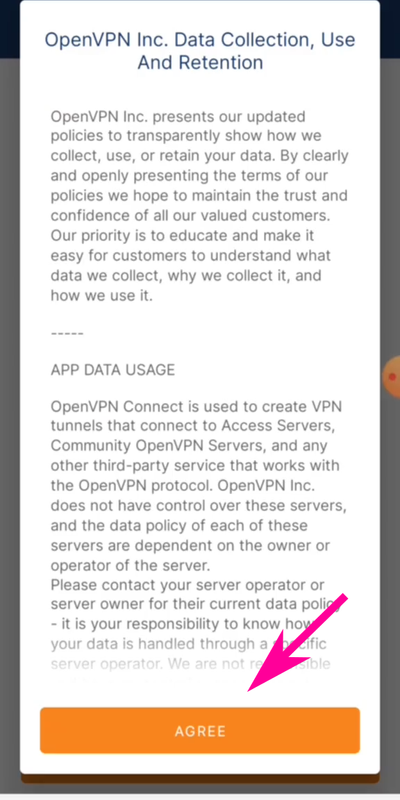
Tap the right side tab 'Upload File'
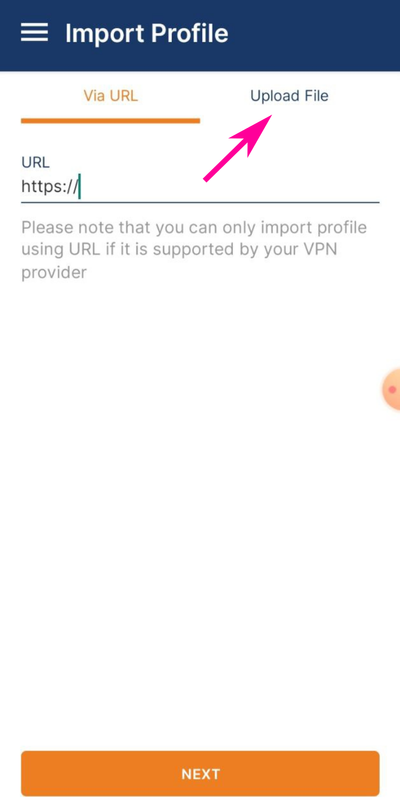
Once there, open files on your device and find VPN configuration file that you should have saved earlier. Check Downloads folder of your browser or other default Downloads folder. You should find it there.
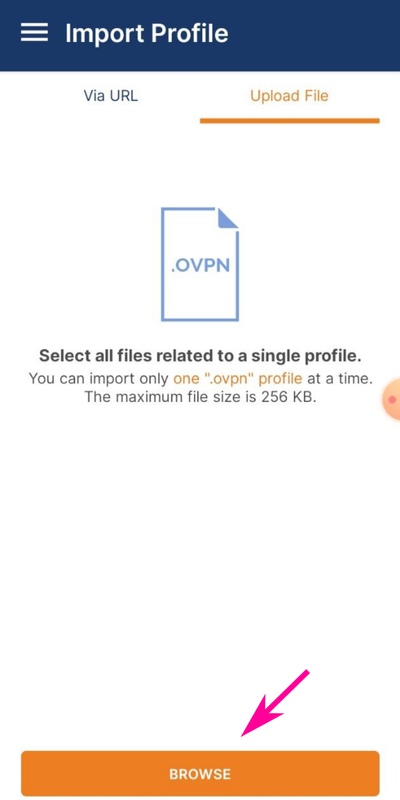
Find the configuration file that filename usually starts with region code. For example "EU_"
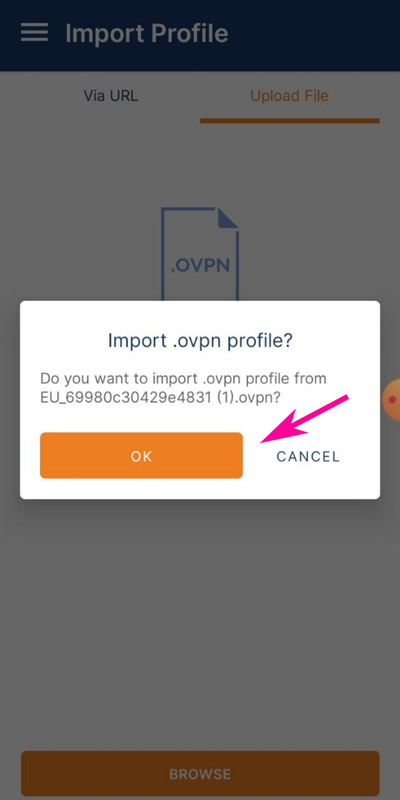
Once you managed to locate the file, tap it and it should show configuration import prompt.
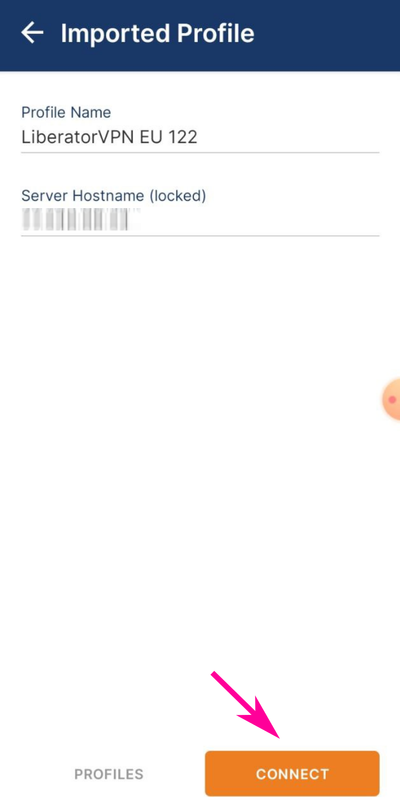
It will show you the name of the server you get connected and it's IP address. Hit CONNECT button.
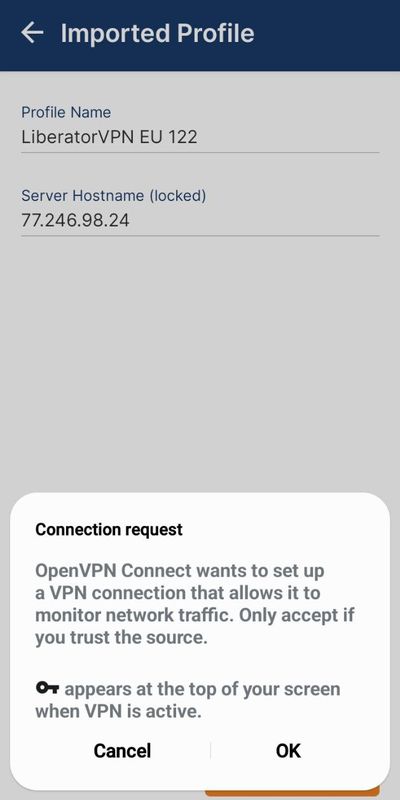
Your device will throw the last prompt on the way to your VPN connection. Asking you if you want to accept the request to establish secure VPN connection or cancel it.
Tap OK if you trust it or hit Cancel if you have doubts.
While you are getting connected. Your device will ask you if you want to receive notifications from OpenVPN Connect application. We suggest to allow it. It doesn't send a lot of notifications anyway. You can also turn them off later at any time.
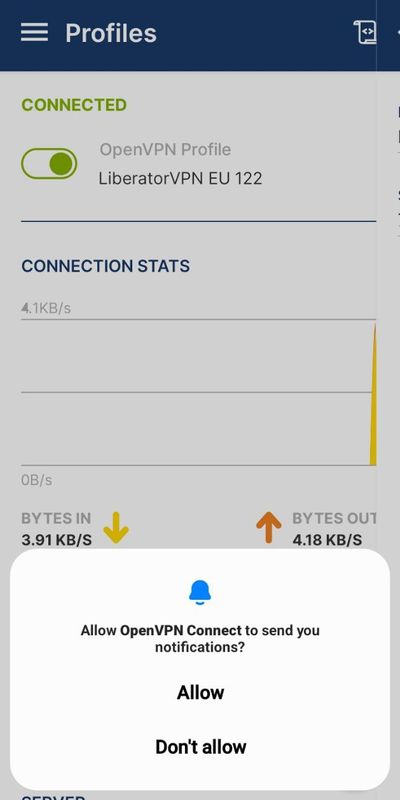
And that's all. Congratulation! You are connected.
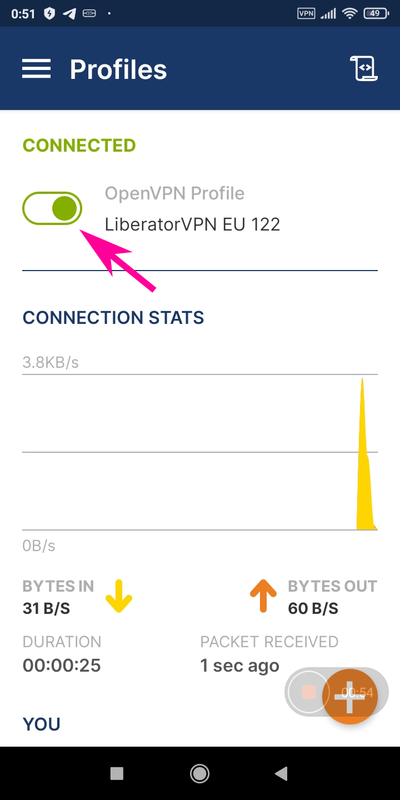
If you faced some difficulties uploading and importing VPN configuration file, you also could try to do it this way.